
Best Image Downloader Extensions for Chrome, Firefox and Edge
Last updated October 2, 2026.
Building a visual reference library means working through hundreds of images across the web. Whether you are collecting mood boards for custom t-shirt artwork, gathering vintage typography samples, or curating holiday illustration references, right-clicking and saving one file at a time turns research into busywork.
A browser extension fixes the tedium. But most of them share the same blind spot: they save whatever URL the page happens to be displaying, and on Amazon, Etsy and most modern galleries that URL points at a compressed thumbnail, not the real file. This guide compares the image downloader extensions worth installing on Chrome, Firefox, Edge and Safari, explains how to tell a safe one from a risky one, and shows how Image Downloader & Collector — our own free, privacy-first extension — resolves the true original instead.
Get Image Downloader & Collector — free
Hover or right-click any image to download the original, file it into folders as you browse, and export the whole collection as one ZIP. No account, no tracking.
Image Downloader Extensions at a Glance
Every tool below is covered in detail further down. The quickest way to choose is to decide whether you want everything on a page right now, or a curated set you build over a research session.
| Extension | Browsers | Best for | How images are saved |
|---|---|---|---|
| Image Downloader & Collector (ours) | Chrome, Firefox, Edge | Research sessions: original files, folders and source tracking | Pick images as you browse, then export one ZIP with a sources.csv |
| Imageye | Chrome | Grabbing everything on one page fast | Scans the page; “Download All” saves the filtered set |
| Image Downloader (Vladyslav Volkov) | Chrome | Open-source page scanning with size and type filters | Scans the page; saves into a subfolder you name |
| Fatkun Batch Download Image | Chrome | Several open tabs at once | Scans multiple tabs; downloads the filtered set |
| Image Downloader by Eros | Firefox | Native Firefox page scanning | Scans the page; “Download All” saves the filtered set |
| Easy Image Downloader | Edge | A lightweight tool in Edge’s side panel | Scans only when you open it |
| Download All Images | Chrome | Large batches from one page | Packages the page’s images into a single ZIP |
| ImageDrain | Safari (macOS, iOS) | Safari users | A Share Sheet app; one-time App Store purchase |
Why You Need a Reliable Image Downloader Extension
Compiling visual reference libraries is a core part of any graphic designer’s research process. A single mood board session for a new t-shirt collection might involve extracting 50 to 200 images from Pinterest boards, Dribbble shots, stock photo galleries, and competitor storefronts.
Without a dedicated tool, this means hundreds of individual right-click → “Save Image As” actions, each depositing files into a single chaotic Downloads folder with cryptic filenames like image_038271.webp. The result is wasted time, lost inspiration, and no way to sort assets by project or theme before you even open your design software.
A reliable image downloader extension solves this by reading the page’s own markup, detecting the media assets it actually references (including lazy-loaded and CDN-served originals), and letting you select, organize, and save images without leaving the tab you are working in.
Why Your Old Image Downloader Stopped Working
If a downloader you relied on disappeared from the Chrome Web Store or quietly stopped working, the cause is almost certainly Manifest V2. Chrome began disabling installed Manifest V2 extensions in stable releases on October 9, 2024, removed the enterprise policy that kept them alive in Chrome 139, and on August 31, 2026 removed every remaining Manifest V2 extension from the Chrome Web Store. Copies already installed on Chrome 138 or earlier keep running, but they get no updates and cannot be reinstalled.
The practical upshot: any image downloader you can install from the Chrome Web Store today is built on Manifest V3, the platform that bans remotely hosted code.
Why Most Image Downloaders Only Save the Thumbnail
This is the failure nobody warns you about. You download 60 product photos for a competitor study, open them the next morning, and every single one is 570 pixels wide and soft around the edges. The extension worked exactly as designed — it just saved the wrong file.
The reason is that a modern web page rarely shows you the original image. It shows a resized derivative, and the original is described elsewhere in the markup:
srcset— one<img>tag can list half a dozen widths and let the browser choose. A downloader that readssrcalone takes whatever the browser picked for your screen, which on a laptop is rarely the largest option.- CDN size parameters — URLs ending in
?w=600&fit=crop&dpr=2are generated on the fly. Strip the parameters and the same URL returns the full-size file. - Path-baked size modifiers — Amazon encodes the dimensions into the filename itself, as in
._AC_SL1500_.jpg. Removing the modifier yields the original. - Site-specific attributes — Amazon puts the full-resolution URL in
data-old-hiresand a JSON map of candidates indata-a-dynamic-image. Etsy servesil_570xNthumbnails whose originals live atil_fullxfull. - CSS backgrounds — plenty of galleries never use an
<img>tag at all, so a downloader that only walks images finds nothing to save.
Image Downloader & Collector works through these in order — Amazon rules, Etsy rules, data-* attributes, srcset, a parent link pointing at an image file, then currentSrc/src with the size parameters stripped, and finally the CSS background image. Whichever step produces the original wins.
One deliberate exception is worth knowing about, because it is where naive URL-rewriting breaks: when a URL carries a signature (sig, token, expires, hmac, policy), the parameters are left untouched. Rewriting a signed URL invalidates it, and you would get an error page instead of an image.
How to Download All Images From a Website
The short answer: install a page-scanning extension, scroll the page so every image loads, filter out icons by size, then download the set — as one ZIP where the tool offers it. Before you trust the result, open one file and check its pixel dimensions.
- Install a page-scanning extension from your browser’s official store — Imageye or Fatkun on Chrome, Image Downloader by Eros on Firefox. All are compared below.
- Open the page and scroll to the bottom. Galleries and feeds load images as you scroll, and an extension can only see the images that have loaded.
- Open the extension and filter by size. A minimum width of a few hundred pixels removes logos, icons and interface graphics.
- Download the selection, as a single ZIP if the tool supports it, so you do not end up with dozens of separate downloads.
- Check one file. If it is much smaller than it looked on screen, the tool saved thumbnails — the section above explains why.
To save a single image from a link, open the link in its own tab and save it from there; what you get is exactly the file at that address.
One thing Image Downloader & Collector deliberately does not do is sweep a whole page in one click. It is built for picking: you save the images you want as you browse and export them together as one ZIP. If you need everything on a page right now, a page-scanning tool from the list below is the better fit.
Best Chrome Extensions to Download All Images on a Page
Google Chrome dominates the browser extension ecosystem, and it offers several well-established bulk image downloading tools. Here is how the most popular options compare for visual asset collection workflows:
Imageye – Image Downloader
Imageye has become one of the most popular Chrome image downloaders thanks to its clean, modern user interface. When activated on any webpage, it scans and displays every detected image in a grid view. Designers can filter results by minimum width, height, or file size — making it easy to skip tiny icons and thumbnails and focus only on high-resolution assets worth saving. The one-click “Download All” button pulls every filtered image into your local Downloads folder simultaneously.
Imageye works well for quick, high-volume asset grabs from visually dense pages like stock photo galleries or social media feeds. However, it lacks folder organization features — every image lands in the same default directory.
Image Downloader by Vladyslav Volkov
This open-source classic takes a different approach with a straightforward toggle-based interface. Instead of a visual grid, it presents a scrollable list of detected image URLs with individual checkboxes. Users can set minimum and maximum width/height thresholds, filter by file extension (JPG, PNG, WebP, SVG), and specify a subfolder name for organized saving directly from the extension popup.
The subfolder naming feature is a standout for designers who want basic project-level organization without additional software. Its open-source codebase on GitHub also makes it a strong choice for privacy-conscious users who want to inspect exactly what the extension does.
Fatkun Batch Download Image
Fatkun excels at a use case the others struggle with: extracting images from multiple open tabs simultaneously. If you have 10 product pages or gallery tabs open during a research session, Fatkun can scan all of them in one batch operation, filter the combined results by URL pattern or dimensions, and download the entire set at once.
This multi-tab capability makes Fatkun particularly valuable for competitive research — for example, scanning an entire competitor’s product catalog across paginated gallery pages. The tradeoff is a slightly more complex interface that takes a few minutes to learn.
Bulk Image Downloader Extensions for Firefox & Microsoft Edge
Chrome extensions dominate search results, but a significant portion of designers use Firefox or Edge as their primary browser. These platforms have their own dedicated image downloading tools worth knowing about:
Image Downloader by Eros (Firefox)
This highly-rated Mozilla Firefox add-on provides a clean filter panel specifically designed for Firefox’s extension architecture. After clicking the toolbar icon, it detects all images on the active page and presents them in a visual preview grid. Users can filter by resolution, format, or minimum file size, then select individual images or click “Download All” to save the entire filtered set.
For Firefox users who need to download multiple images at once, this is the most reliable native option — no workarounds or Chrome compatibility layers needed.
Easy Image Downloader (Microsoft Edge)
Microsoft Edge users benefit from this lightweight extension optimized specifically for Edge’s Chromium foundation. Its standout feature is a minimal memory footprint — it does not continuously scan pages in the background like some Chrome alternatives. It activates only when explicitly triggered, making it an efficient choice for users who want image downloading capability without sacrificing browser performance.
The extension also integrates cleanly with Edge’s sidebar panel feature, allowing users to browse detected images in a docked side panel while continuing to navigate the main page.

Solving the Safari Gap: How to Download Images on macOS
Safari users on macOS and iOS face the most limited extension ecosystem for image downloading. Apple’s strict App Store review process and Safari’s unique WebExtensions API mean that many popular Chrome/Firefox tools simply do not have Safari equivalents.
The most practical workaround involves using a dedicated Safari-native app rather than a traditional browser extension.
ImageDrain for Safari
ImageDrain is the most widely recommended solution for Safari users. Rather than operating as a toolbar extension, it integrates directly into the macOS and iOS Share Sheet system. When browsing any webpage in Safari, users tap the Share button, select ImageDrain, and the app extracts and displays the image elements it finds on the active page.
Users can then select individual images or choose “Select All” to download the entire set to their device. On iOS, images save directly to the Camera Roll or Files app. On macOS, they save to a designated folder. ImageDrain is available on the App Store as a one-time purchase with no subscription or recurring fees.
What is the Safest Image Downloader Extension? Privacy & Security Best Practices
Browser extensions operate with significant access to your browsing activity. An image downloader, by necessity, needs permission to read page content — but some extensions request far more access than they actually need, creating potential privacy and security risks.
The risk is not theoretical. In November 2017, BleepingComputer reported a Chrome extension called simply “Image Downloader” that injected ads into the sites people visited and into search results, and opened unwanted tabs. The generic name is the lesson: several unrelated extensions share it, so judge the publisher, not the name.
Expect any image downloader to ask to “read and change your data on the websites you visit” — it cannot find the images on a page without that, and ours asks for it too. What matters is what an extension does with the access. Before installing one, check five things:
- Who publishes it. A real developer or company with a website and a way to contact them.
- What the store listing says about data. Look for an explicit “no data collected” disclosure and a privacy policy.
- Whether you can read the code. A published codebase lets anyone confirm what the extension does; privacy claims are worth more when they can be checked.
- Whether it is maintained. A recent update is a good sign — and on Chrome, anything installable today is Manifest V3.
- What reviews mention. New tabs, injected ads or redirects are a red flag, whatever the star rating.
The safest approach is to choose extensions built on Manifest V3 (the current Chrome extension platform, which restricts remotely-hosted code) that keep their data in local chrome.storage APIs.
Image Downloader & Collector was built on exactly this principle. It is Manifest V3, it stores collections and folders in chrome.storage.local on your own machine, it has no account or sign-in, and it sends nothing to us — there is no analytics endpoint and no server of ours for your data to reach. The only network traffic it generates is fetching the image files you asked it to download, and those requests are made with credentials omitted. The full source code is public on GitHub if you would rather verify that than take our word for it.
Specialized Use Cases: Social Media & High-Resolution JPG Filtering
Standard image downloaders work well on static websites, but social media platforms and dynamically-loaded galleries present unique challenges that require specialized handling.
Platforms like Instagram, Pinterest, and Twitter/X use JavaScript-heavy rendering that loads images as users scroll. A basic extension that only scans the initial page HTML will miss most content. Effective tools need to monitor DOM mutations (new elements added as you scroll) to capture images that load after the initial page render.
Another common need is format-specific filtering. Designers working on print-ready assets often need only high-resolution JPG files above a certain dimension threshold — not the dozens of tiny SVG icons, PNG UI elements, and WebP thumbnails that clutter most webpage markup. Extensions that offer file-type filtering (JPG only, minimum 1000px width) save significant post-download cleanup time.
Download All Images (ZIP Extractor)
This Chrome utility takes a fundamentally different approach to the download process itself. Instead of triggering dozens of individual browser download prompts (which can overwhelm your Downloads folder and trigger browser throttling), it packages the detected images into a single compressed ZIP file.
The ZIP approach preserves original filenames and directory structure, prevents filename collisions, and produces a single clean archive that can be moved, backed up, or shared as one unit. For designers who routinely download 50 or more images per session, this eliminates the post-download file management overhead entirely.
Image Downloader & Collector uses the same ZIP-based export — with one difference in how you get there. It does not sweep a page and hand you everything on it; you pick the images you want as you browse, and the collection you built is what gets exported.
Inside Image Downloader & Collector
The comparison above covers tools built around a single moment: you are on a page, you want its images, you press a button. Image Downloader & Collector is built around the research session instead — the two hours you spend across forty tabs, deciding what is worth keeping.
Three ways to grab an image
Hover an image and two round buttons appear in its top-right corner: download it, or save it into a folder. The icons only appear on images 60×60 pixels and larger, so page furniture and social icons stay untouched.
If you prefer a clean page, the right-click menu does the same two jobs: Image Collector ▸ Download original image, or ▸ Save to collection ▸ and pick a folder. The menu registers on links as well as images, because product grids routinely lay a transparent link over the whole card — which is why right-clicking a search result on some sites offers you no image options at all. And rather than trusting the URL the browser reports for that element, it resolves the original from the page itself, using the same rules described above.
The dashboard is the third route: every saved card has its own download button, so you can pull any image again later.
Folders you fill while you browse
Create whatever categories fit the work — Vintage Typography, Client Work, Halloween 2026 — and file images into them straight from the page, without opening the dashboard. Saving an image to a folder costs no disk space at all; it records the URL and metadata, and files are downloaded only when you ask for them. Save something twice into the same folder and it tells you it is already there.
Every image remembers where it came from
This is the part that matters three months later, when you find a design you love in your library and have no idea who made it. Each card carries a clickable domain badge that reopens the page it came from, and the search box filters by domain, so typing etsy.com narrows a 400-image collection to just the Etsy finds.
Every ZIP export also ships a sources.csv listing the filename, title, folder, source domain, source URL and save date for each image — written so that Excel and Google Sheets open accented titles correctly rather than turning them into mojibake. For anyone doing competitor research, that CSV is the difference between a folder of pictures and an auditable record.
Hover icons you can switch off
Most people who uninstall a tool like this do it for one reason: the icons got in the way while they were doing something else. So there is a Hover icons switch in the dashboard header. Flip it off and the icons vanish from every open tab immediately, with no reload — while the right-click menu and the dashboard keep working exactly as before. Turning them off costs you nothing.
Batch export as one ZIP
When the session is done, open the dashboard and take the whole collection or just a selection. Inside the archive, images are grouped into the same folders you organised them into, file extensions are detected from the file contents when the URL has none, duplicate filenames are numbered automatically, and sources.csv sits alongside them.
The Creative’s Toolkit: Essential Gear for Graphic & T-Shirt Designers
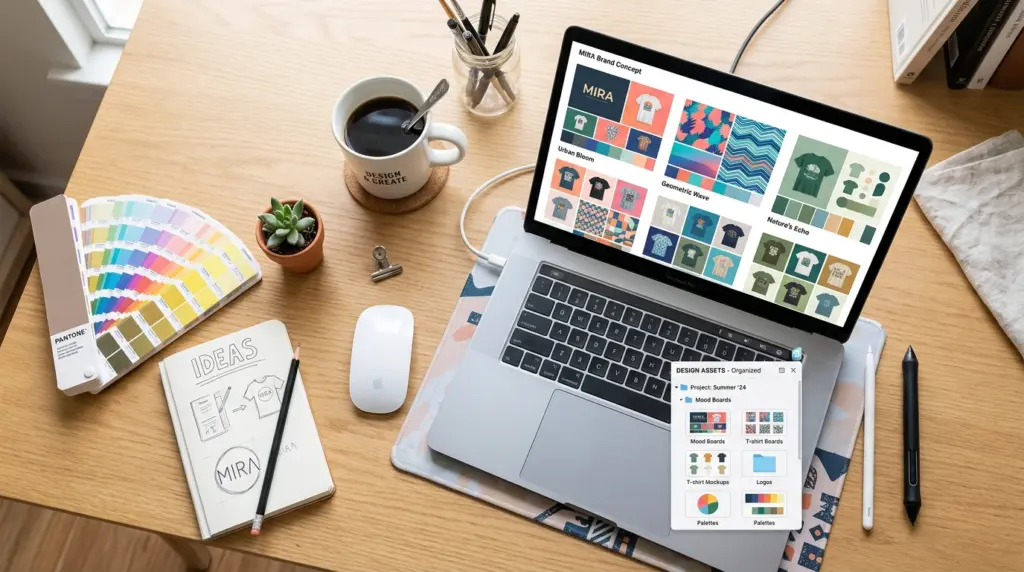
Image downloading is just one piece of the visual research workflow — the first step on the way to a finished shirt like the ones in our classic graphic tees collection. Designers who regularly collect and organize graphic assets for custom apparel projects benefit from complementary tools that streamline the full creative pipeline:
- Color-Accurate Monitor: An IPS or OLED display with factory-calibrated sRGB coverage helps the colors you see during research match what prints on fabric.
- Digital Drawing Tablet: A pressure-sensitive tablet (Wacom Intuos or XP-Pen Deco) accelerates the transition from collected inspiration to original artwork, especially for hand-lettered typography designs.
- Color Palette Extraction Tools: Browser-based tools like Coolors or Adobe Color can extract dominant color palettes directly from your downloaded reference images — useful for maintaining color harmony across a t-shirt collection.
- Cloud Sync Folder Structure: Organizing downloaded assets into a synced folder structure (Google Drive, Dropbox, or OneDrive) keeps your visual library accessible across devices and backed up automatically.
- Vector Tracing Software: Tools like Adobe Illustrator’s Image Trace or the free Inkscape auto-trace convert raster inspiration images into scalable vector artwork suitable for screen printing and DTG production.
- Fabric Knowledge: How a design looks once printed depends on the shirt underneath — our guide to cotton vs. performance shirts covers the differences.
Install Image Downloader & Collector
The extension is free, and it is published on the official stores — no developer mode, no manual ZIP, no sideloading:
- Google Chrome: Install from the Chrome Web Store
- Mozilla Firefox: Install from Firefox Add-ons
- Microsoft Edge: Install from Edge Add-ons
- Brave: Brave installs Chrome Web Store extensions directly — use the Chrome link above.
- Source code: Read the full source on GitHub
After installing, pin the extension to your toolbar — the icon opens the dashboard where folders, search and ZIP export live. Then hover any image and start collecting.
A note on versions, accurate as of October 2026: the Chrome, Firefox and Edge listings are all on 1.1.0, the release that added the right-click menu, the hover-icon switch and source tracking. Source information has been recorded since the very first release, so images you saved before updating show their origin as soon as you update — nothing is lost and there is no migration step.
Looking for more? Our free tools page also has a T-shirt size calculator.
Frequently Asked Questions
How do I download all images from a website at once?
Install a page-scanning extension such as Imageye or Fatkun on Chrome, or Image Downloader by Eros on Firefox. Scroll the page to the bottom so every image loads, filter out small images by size, then download the selection — as one ZIP if the tool offers it. Open one file afterwards to check you saved the full-size images, not thumbnails.
Why do my downloaded images save as WebP instead of JPG?
Your browser saves the file the website serves, and many sites serve resized WebP versions of their images. The original behind them is often a JPG or PNG: on Amazon and Etsy, for example, the full-size original is a JPG. An extension that resolves the original, rather than saving the displayed copy, usually gets you that file. Image Downloader & Collector does not convert formats; it fetches the original as the site stores it.
Are image downloader extensions safe?
Not always: in 2017 BleepingComputer documented a Chrome extension named “Image Downloader” that injected ads and opened unwanted tabs. Choose one from a publisher you can identify, with a “no data collected” disclosure, recent updates, readable source code if possible, and no reviews complaining about ads or redirects.
How to download 100 images at once?
Use a batch image downloader extension such as Imageye or Fatkun on Chrome. These tools scan the page, detect the image assets it references, and present them in a filterable grid; select everything (or filter first by minimum dimensions) and trigger the bulk download. At that volume, prefer a tool that packages the result as a ZIP rather than firing 100 separate browser download prompts — it avoids download throttling and filename collisions.
Can I download images from Instagram with an extension?
Page-scanning extensions only see images that have loaded, so on feeds like Instagram you have to scroll to load them first, and some images are displayed in ways extensions cannot read. Never give a downloader your Instagram login, and only save images you have the right to use.
What is the extension ImageDrain for Safari?
ImageDrain is a macOS and iOS app designed specifically for Safari. It integrates into the system Share Sheet, so you access it by tapping the Share button while viewing any Safari webpage. ImageDrain then extracts and displays the image elements it finds on the page, letting you select and save them to your device. It is available as a one-time purchase on the Apple App Store.
How do I download an image in Firefox?
For a single image, right-click it and select “Save Image As…” to save it to your computer. Be aware that this saves the file the page is displaying, which on shopping and gallery sites is usually a resized thumbnail rather than the original. An extension that resolves the original from the page’s markup will give you the full-resolution file instead.
Download the original, not the thumbnail
Image Downloader & Collector is free, stores nothing on our servers, and installs in one click.
Final Takeaway: Choosing the Right Tool for Your Workflow
The best image downloader extension depends on three things: your browser, your privacy requirements, and whether you are grabbing one page or running a research session.
- Chrome users who need speed: Imageye offers the fastest scan-and-download workflow with its visual grid interface.
- Multi-tab researchers: Fatkun is the standout for extracting images from several open tabs in a single batch.
- Firefox or Edge users: Image Downloader by Eros (Firefox) and Easy Image Downloader (Edge) are solid native page-scanning options.
- Safari / macOS users: ImageDrain remains the most reliable Safari-compatible solution.
- Anyone who needs the real file, and needs to remember where it came from: Image Downloader & Collector resolves the original instead of the thumbnail, keeps images in folders you build as you browse, and exports the set as a ZIP with a source CSV.
Whichever tool you choose, prioritize extensions with transparent permissions, active maintenance, and ideally a codebase you can read. And check one downloaded file before you trust a tool with a whole session — open it and look at the pixel dimensions. If it is 570 pixels wide, you have been collecting thumbnails.
A note on use: you are responsible for respecting the copyright and terms of use of the sites you visit. Tools like these are for lawful reference gathering and research.